One conversation per idea.
You only ever talk to the task's coordinator. Add a thought while it runs, keep talking once it stops — the whole idea stays in one thread.
 Claw Fleet
Hand off the idea. Keep the calls.
Each task is one conversation with a coordinating agent. It does the small things itself, proposes a split before it fans work out, and brings you one summary at the end. Every task across every project sits on one page, sorted by what it needs from you.
Download Claw FleetSee how a task runs Free & open source. Bring your own AI tools and accounts.
Write what you want done and pick a project. Tasks group by what they need from you — needs you, running, waiting, to accept, done — so you never switch project to find out what moved.
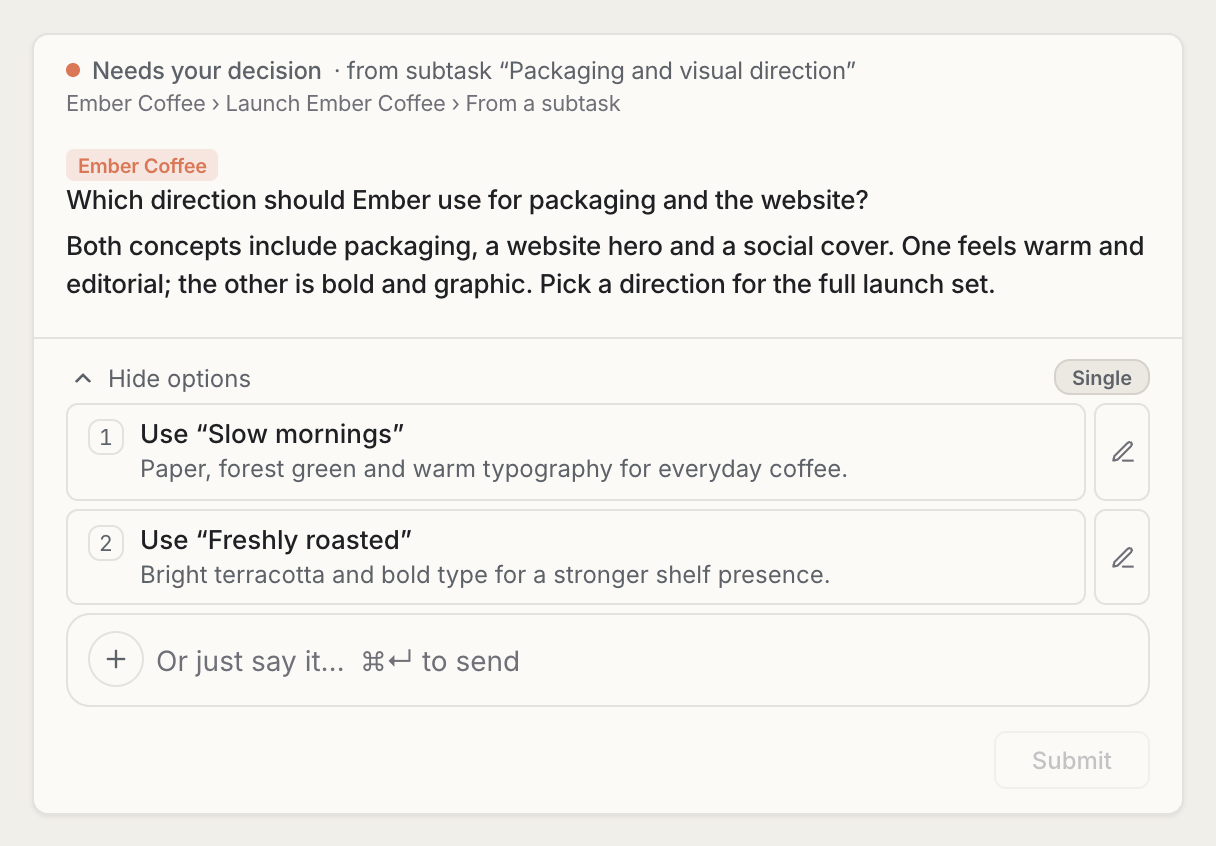
Only the decisions that need you come up — as a card at the end of the task's conversation, naming the sub-task that asked, with the material for the call filed beside it. Before the coordinator splits work, it asks the same way.

Open a task to read the whole main conversation. Its sub-tasks, steps and filed material sit beside it, and any sub-task can be opened and steered.
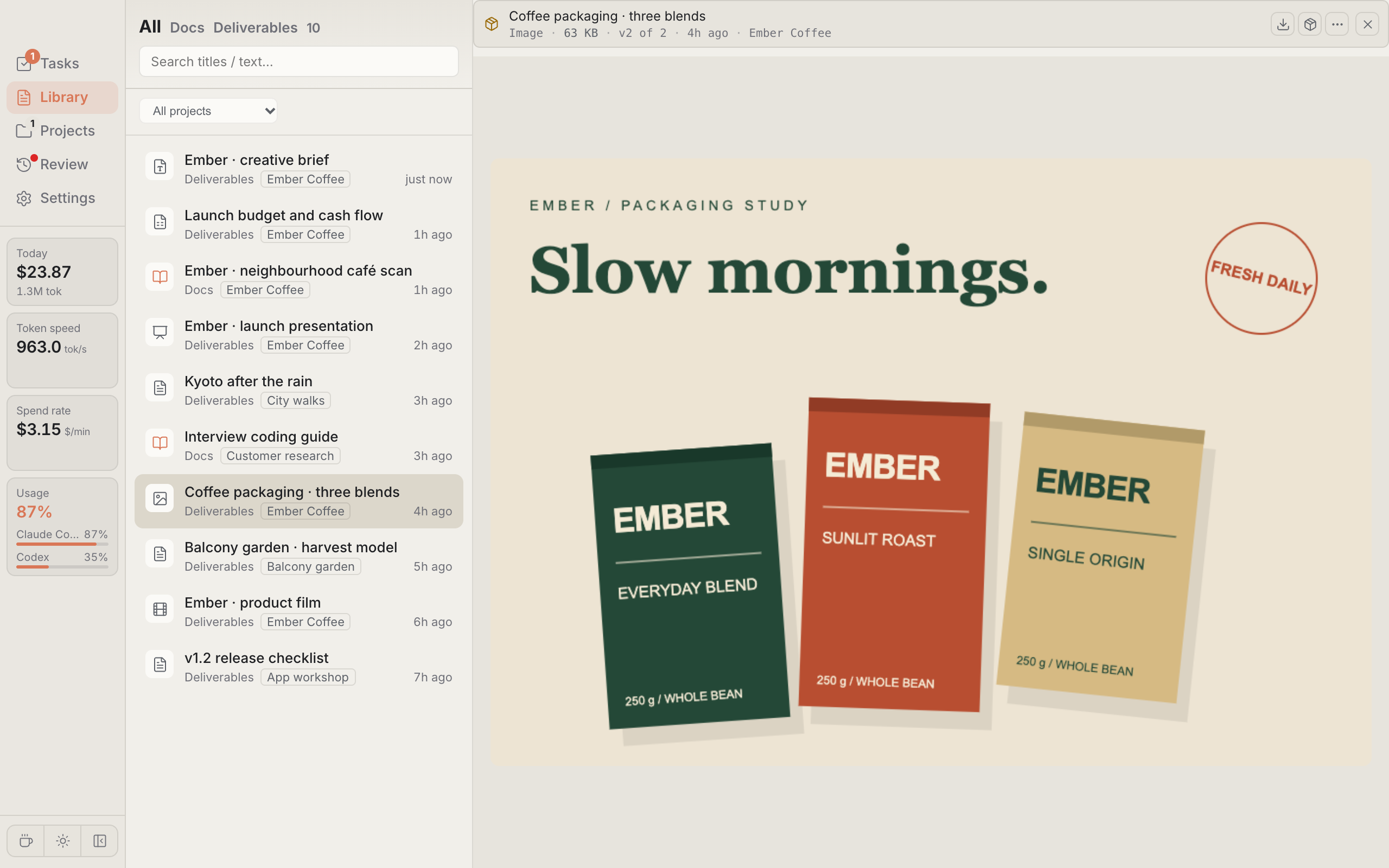
Sub-tasks report to the coordinator, not to you. When it is done you get one summary, the task moves to To accept, and what it produced lands in the Library.
Current interface · Illustrative data
Three things are yours: the idea, the calls only you can make, and accepting the result.
You only ever talk to the task's coordinator. Add a thought while it runs, keep talking once it stops — the whole idea stays in one thread.
Questions from the coordinator and every sub-task land in one queue, labelled with the task they came from; a proposal or image rides on the card, a document is filed beside it.
When a conversation outgrows its context, it continues in a fresh one by itself, steps and brief carried over. To you it is still the same task.
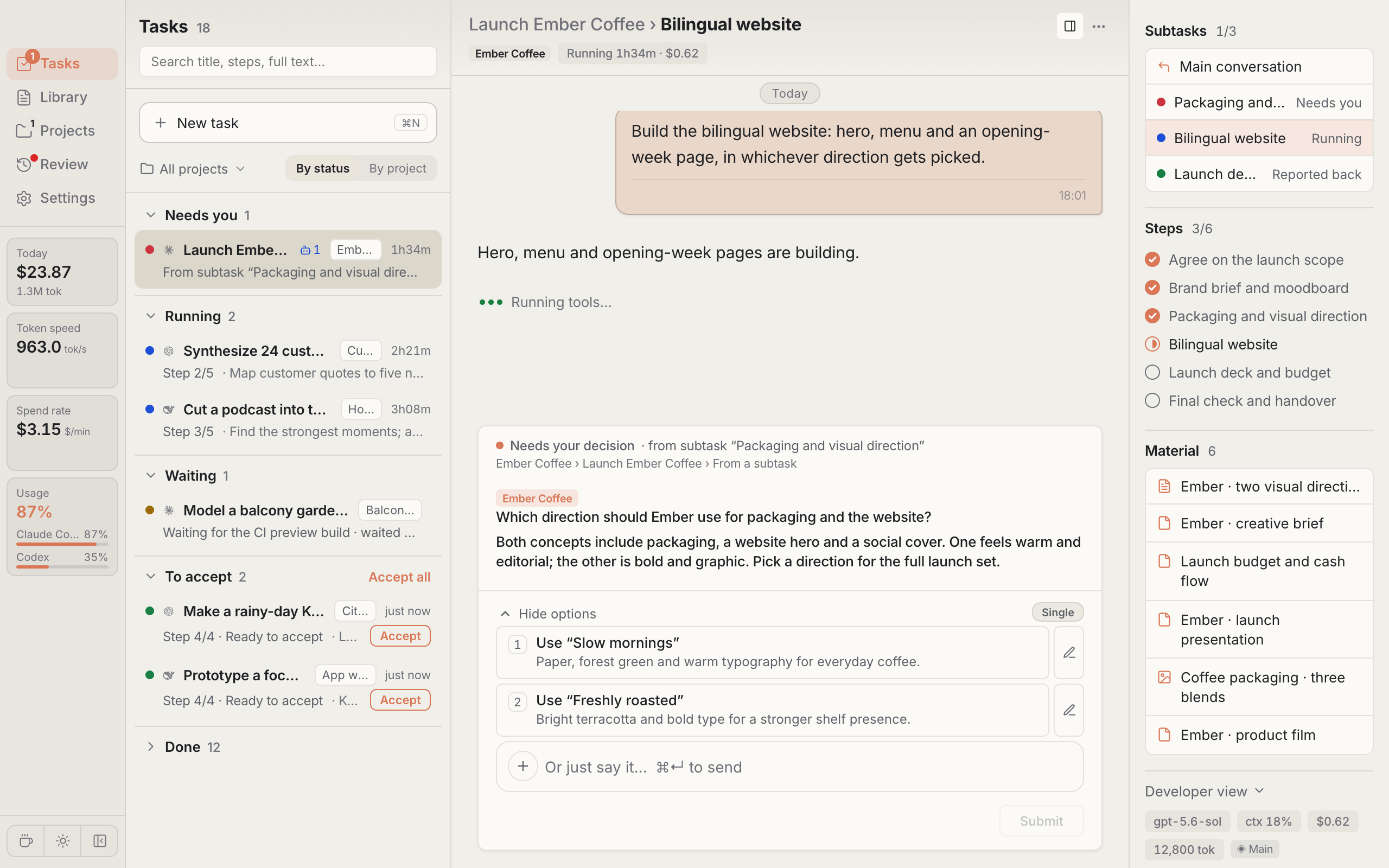
A coordinator can be Claude Code, Codex or DeepSeek Harness, and a task can move between them. You pick per task.
The split is only an example. Every task picks its own tool and model, and work can continue on another tool’s model mid-task.
Current interface · Illustrative data
Choose the agent tool when you hand over the idea, then a model from that tool’s own catalogue. The developer view on a task’s page names the model it runs on.
Moving to another tool carries the project, the steps and where they stand, and the notes left behind. The next one doesn’t rebuild the context.
Steps, the library and the project’s memory live in Fleet, not inside one tool. What Claude Code writes down, Codex and DeepSeek Harness can read back.

Current mobile interface · Illustrative data
The phone opens on what needs you, across every project. Answer a call, accept a result, or hand over a new idea — the work keeps running on your own computer.
A project is just a code directory. Tasks carry its name; filtering is one click, never a place you have to go.
Each project keeps its code and Git view, its routines and its memory — what agents have learned and the rules you adopted.
Documents agents publish are versioned and searchable; deliverables preview in place. The next task can cite them.
Recurring or scheduled work runs as routines; each run is a task like any other, and lands in the same list.
Claude Code, Codex, and DeepSeek Harness
Use the tools and models you already have. DeepSeek Harness connects to the model providers you configure; all three keep their own accounts and quotas.55 capabilities, grouped by how you use them. Open a section when you need it.
Use Claude Code, Codex and DeepSeek Harness in one workspace.
Choose an available model, reasoning effort and permission mode.
Attach source material and reference images to a brief.
Add another instruction without waiting for the task to finish.
Tasks from all projects, grouped into needs you, running, waiting, to accept and done.
Find earlier tasks by title, plan or full text, or narrow the page to one project.
The coordinator lists the sub-tasks it wants to start and waits for your go-ahead.
Split work runs side by side, each folded under the task it belongs to.
Sub-tasks report to the coordinator; you get a single summary.
Each task and sub-task keeps a progress list with the current step marked.
Waiting on sub-tasks or a build shows as Waiting, with what it waits for.
A full conversation continues in a fresh one and stays the same task.
Pick Claude Code, Codex or DeepSeek Harness for a task, then a model from that tool.
Name another tool’s model when the work continues and it runs there.
The step list and where it stands carry over to the next tool.
A continuation reads the notes the earlier conversation left behind.
A report one tool publishes is what the next tool reads back.
A task’s page names the tool and model it runs on.
Tell thinking, running a tool, writing and waiting apart.
Inspect thinking, tool calls and code changes.
Open any sub-task from the side rail to read or steer it.
Session facts, the relay chain, token use, notes, background commands and workflows.
Take control of a stuck or no-longer-needed task.
Keep useful work easy to find.
Questions from every task and sub-task, shown at the end of the task's conversation and labelled with their source.
Review documents, images and HTML previews alongside a decision.
Use single choice, multiple choice, free text and form fields.
Review risk analysis before supported commands run.
Read and edit a proposed plan before approving it.
Delivered tasks wait in To accept until you accept them.
Docs and deliverables in one list, filtered by type and project, with search.
Preview PDFs, Office files, images, video and web documents.
Download finished files or hand them to someone else.
Organize deliverables without relying on filenames alone.
Update a document while keeping earlier versions available.
Search full text and cite conclusions across documents and tasks.
Start a task once at a set time, or on a repeating interval; each run is an ordinary task.
See what agents noted down while working in a project, with revision history.
Browse files, see branch, ahead/behind and changes, then pull or push.
See the commands running in a project; an optional built-in terminal.
Point a project at a directory on another machine.
Run Fleet Web UI on your own always-on machine.
See supported account quotas and reset windows.
Per task, including its sub-tasks, plus a running total for today.
See how usage moved over days and weeks.
Each day’s progress, grouped by project.
Tasks drifting from their goal, and lessons that recur across tasks.
Every command agents ran, by risk category, with your allow rules.
Inspect skills, sync them across supported tools, manage plugin sources.
Rules that apply to every project, with their scope and history.
Answer decisions, accept results and start tasks from a phone.
Pair a phone with desktop Fleet and switch between machines.
Turn speech into editable text and add images to a brief.
Choose how Fleet gets your attention.
Check installation, versions, sign-in and tool availability.
Install the desktop app, connect your AI tools, and hand over the first idea.
Screens show the current development interface. Downloads below are the latest stable release; mobile layout may differ.
GitHub downloads are available now. A China mirror will appear here when it is enabled.
chmod +x fleet-linux-x64
./fleet-linux-x64 webui
Open http://127.0.0.1:4571 in your browser. For ARM64, replace x64 with arm64 in both commands.
Allow “install unknown apps” for whatever opens the file, then pair the phone by scanning the QR in the desktop app under Settings → Devices. The phone is a companion to a desktop workspace, not a standalone app.
Check or install the tools from Settings, then sign in or fill in provider credentials. Model subscriptions and API usage stay on each vendor’s own bill.
Write what you want done, pick a project, a tool and a model, attach material if you have it. The coordinator takes it from there.
Pair your phone under Settings → Devices. As long as the machine running Fleet stays online, decisions reach you anywhere.
Fleet connects to Claude Code, Codex and DeepSeek Harness (the @deepseek-ai/dsh CLI). Install and configure the tools you want to use. DeepSeek Harness can select models from configured providers; availability depends on those providers and your credentials. Which agent tools Fleet works with keeps the tool list and the model list apart.
A coordinator per idea instead of a pile of terminals: one conversation that splits work into sub-tasks after you confirm, waits for them and reports back; every task across every project on one page; and one queue for the calls that need you, with the material attached. It starts the CLI you already have and reads the sessions it writes. A desktop workspace for Claude Code walks through it.
Yes — a task picks its tool when you brief it, and Codex tasks get its own model catalogue, its own reasoning ladder and the ChatGPT-plan windows it reports. A desktop workspace for Codex goes through it.
That is what DeepSeek Harness is for: you configure the providers, and the models you can reach are whatever those keys open. A desktop workspace for DeepSeek Harness covers how spend and effort work there.
Claw Fleet itself is free and open source under AGPL-3.0. AI tools, model subscriptions and API usage stay on each vendor’s own bill. Costs shown in Fleet are estimated from usage, for reference only.
The machine running the task has to stay online. If your phone is paired to Fleet on your computer, that computer and Fleet both need to be up. You can also deploy fleet webui on a machine that stays on.
Voice input transcribes speech into text that you can edit before sending. Availability depends on your browser or device speech service and microphone permission. It is not a two-way voice call.
The deliverables view contains files added by an agent or the artifact command. Supported files can be previewed and exported. Mobile relay previews have a 16 MiB limit; use the desktop for larger files.
It stays one task. The coordinator keeps a step list, splits parallel work into sub-tasks, can wait on a build or a sub-task without holding a session open, and continues in a fresh context when one fills up — on the same tool or another. That is not unlimited context, and what you can use depends on the tool’s support.
Fleet runs on your machine and reads local session data. AI tools connect to their configured providers. Phone access uses a relay when paired with a desktop; self-hosting is also possible. Fleet does not include a model account or a hosted cloud workspace subscription.
When a China mirror is enabled, select it above. GitHub Releases remains the alternative. The Android APK is served from GitHub Releases; whether the mirror carries it depends on the release you are downloading. There is no iOS or HarmonyOS package yet — on those, open the pairing link in the browser.